Create a Virtual Machine2015/01/16 |
|
Create Virtula Machine on VMware Player.
This example shows to install CentOS 7.
Desktop Environment is required to this operation.
|
|
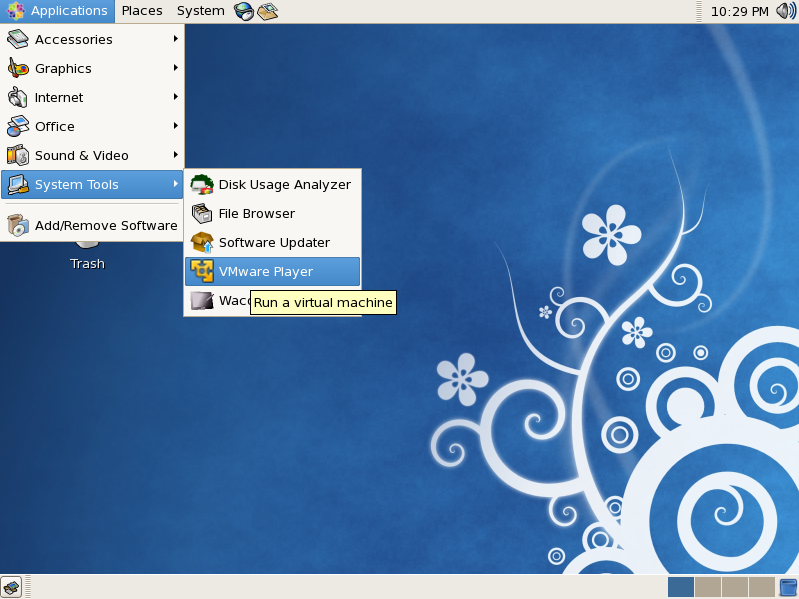
| [1] | Open [Applications] - [System Tools] - [VMware Player ]. |
|
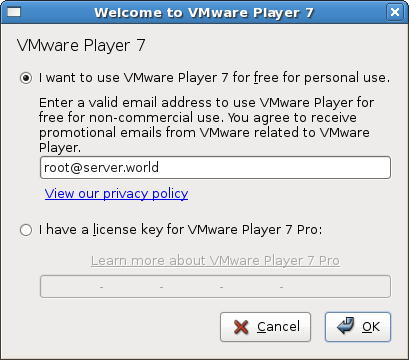
| [2] | Register your email address if you use as personal use. If you got a lisense key, input it. |
|
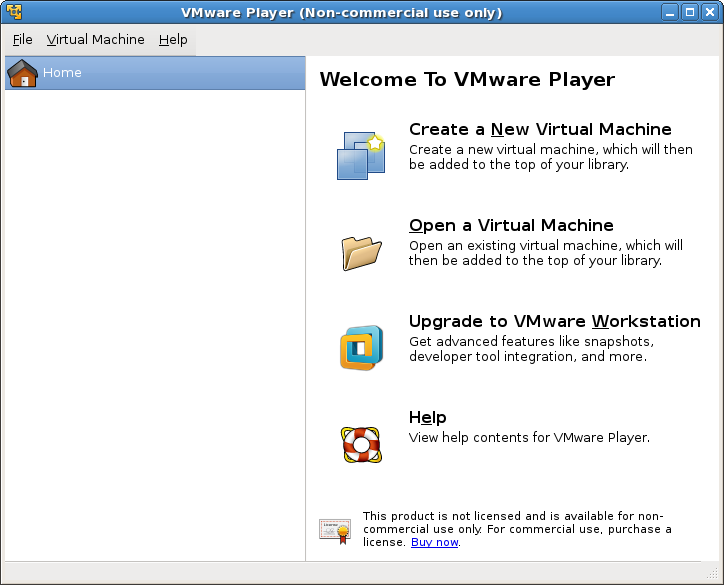
| [3] | Click 'Create a New Virtual machine'. |
|
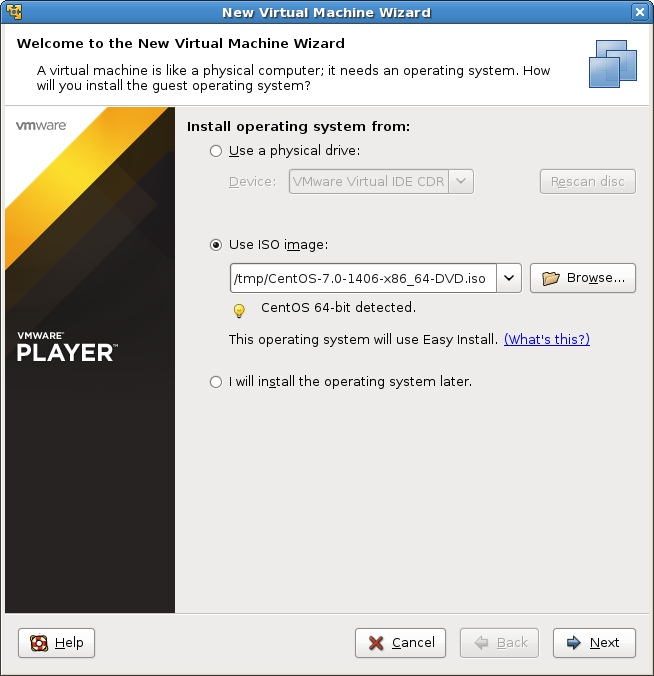
| [4] | Specify the installation source. |
|
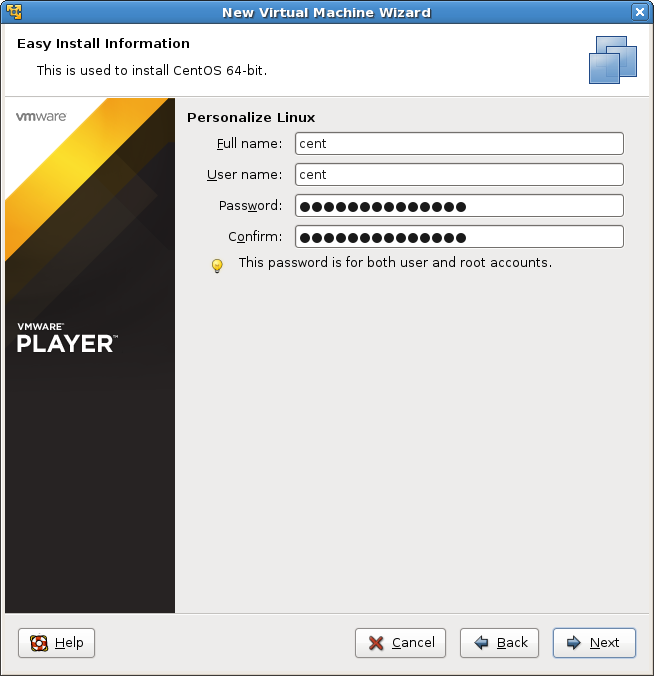
| [5] | Input a user name and password. The user on here will have root priviledge and the password on here will be apply root user, too. |
|
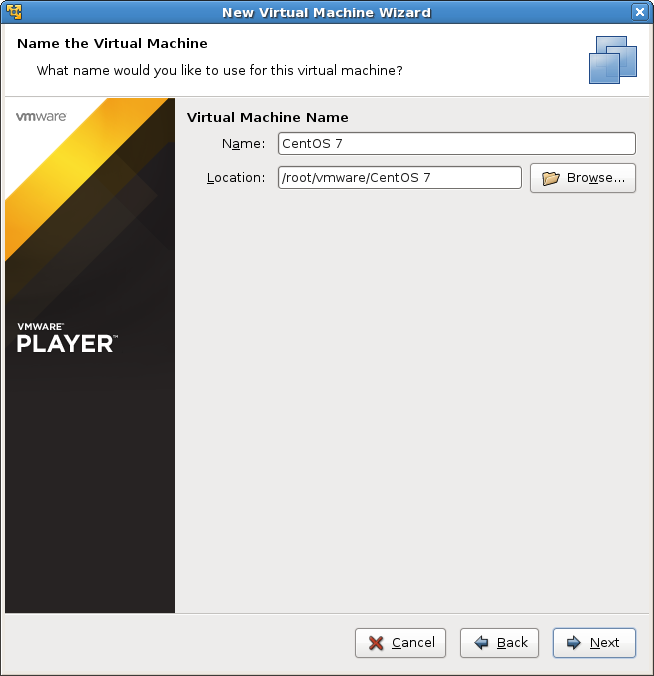
| [6] | Specify the name and location for Virtual Machine. |
|
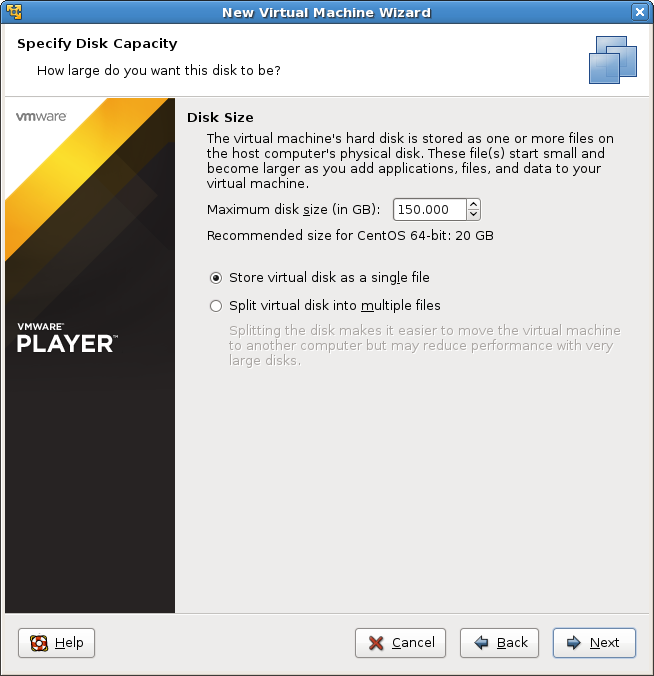
| [7] | Specify the disk size for Virtual Machine. |
|
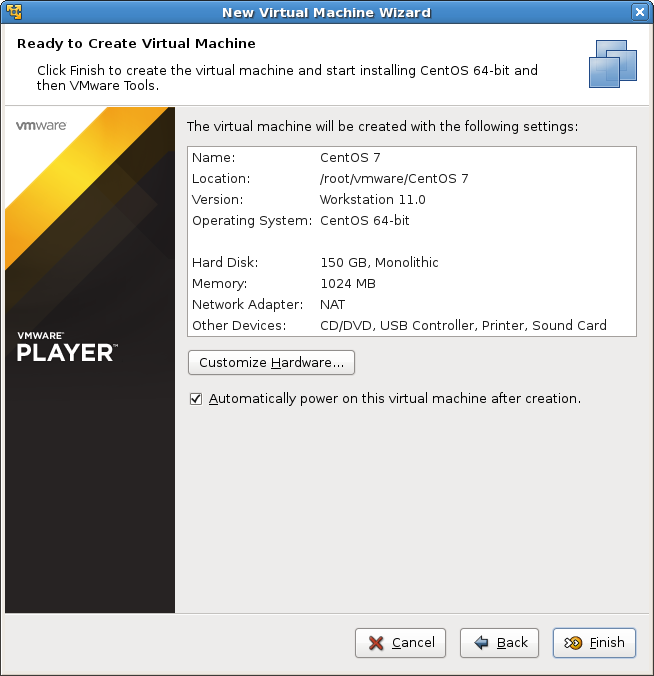
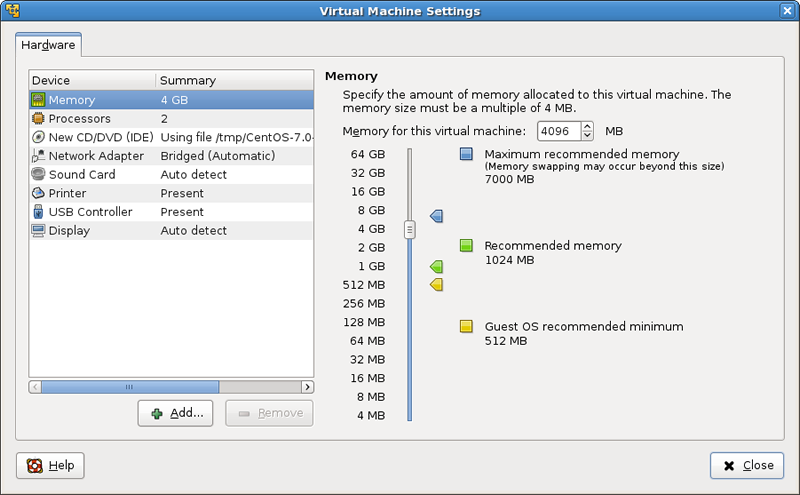
| [8] | Click 'Customize Hardware' button. |
|
| [9] | Change settings of Virtual Machine on here. It's possible to change number of CPUs, memory size, and so on. |
|
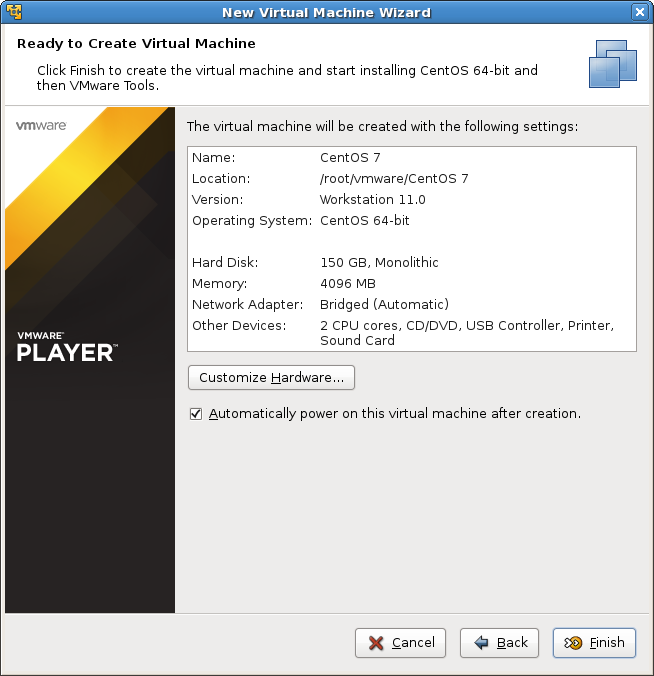
| [10] | Click 'Finish' if it's all OK. |
|
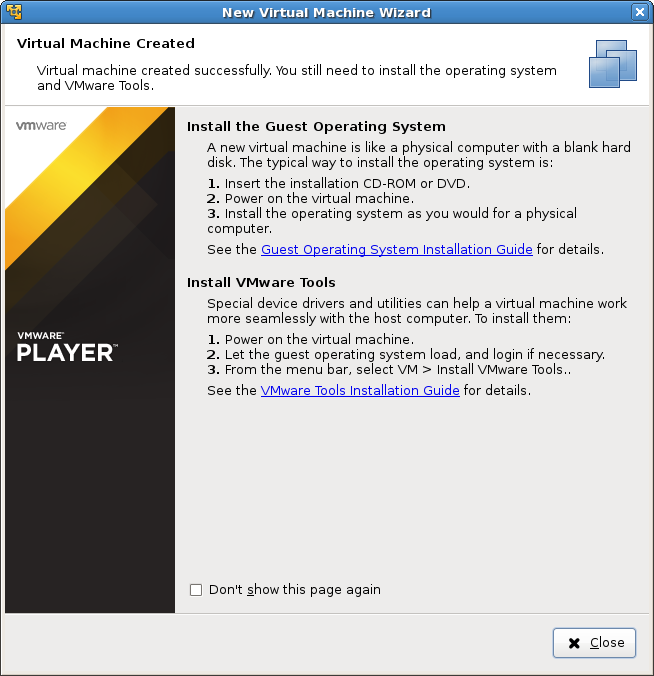
| [11] | Click 'Close' button. |
|
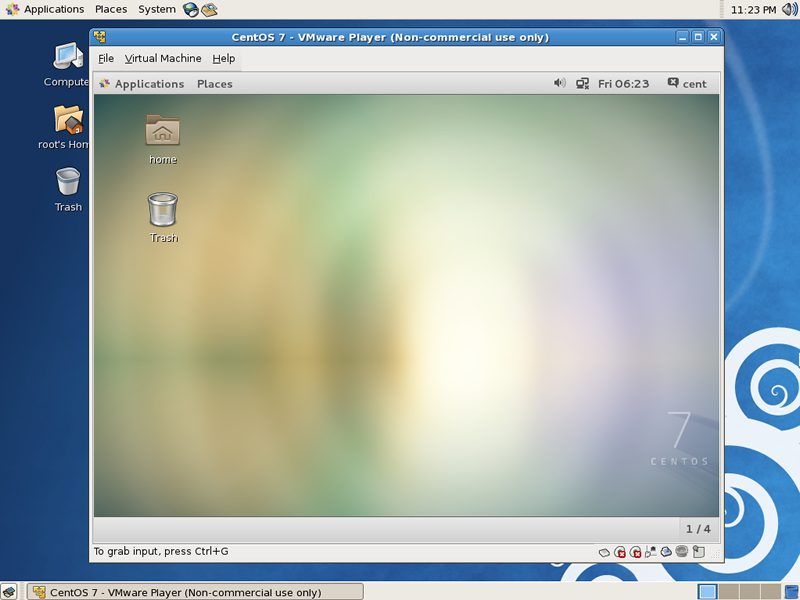
| [12] | Start the Virtual Machine and run installer. After finishing installation, virtula machine will boot like follows. |
|
Matched Content